Showing posts with label Bootstrap. Show all posts

Tuesday, March 8, 2016

Embedding YouTube Videos in Bootstrap

The YouTube Embed provides an HTML code to insert the video in your web page. However, the code it self is not (mobile) responsive.

The steps I will describe shows how to use Bootstrap tags in embedding a YouTube video to make it mobile responsive.

The YouTube video https://www.youtube.com/watch?v=i4klEY-S3OQ will be added in a blog post of my client's Bootstrap enabled WordPress themed website.

I started by copying the embed code of the YouTube video. (Code is then pasted to Notepad application)


The html code is listed below. The src attribute contains the link to the YouTube video.
<iframe width="560" height="315" src="https://www.youtube.com/embed/i4klEY-S3OQ?rel=0&amp;controls=0" frameborder="0" allowfullscreen></iframe>

W3schools provides a page where you may copy the Bootstrap tags to embed YouTube videos,  http://www.w3schools.com/bootstrap/bootstrap_images.asp. I copied/ pasted the code to the NotePad where I also pasted the embed code

Here is the code. The src attribute contains the value "...". This should contain the YouTube link.
<div class="embed-responsive embed-responsive-16by9">
  <iframe class="embed-responsive-item" src="..."></iframe>
</div>

The NotePad, which has both the embed tag and the Bootstrap code. 

The src attribute value of the iFrame is copied:

The value is pasted to the iFrame src attribute of the Bootstrap tag:

Here is the code:
<div class="embed-responsive embed-responsive-16by9">
  <iframe class="embed-responsive-item" src=""https://www.youtube.com/embed/i4klEY-S3OQ?rel=0&amp;controls=0"></iframe>
</div>

Finally, the code is added to the blog post:

On desktop https://mentorgroup.org/2016/03/the-mentor-group-rewards-points/, here is the blog with the YouTube video:

On mobile, the embedded YouTube video responded well:

Perfect!

Saturday, May 16, 2015

Bootstrap Cheat Code for WordPress Thumbnail Mobile Responsiveness

Using the_post_thumbnail() in a WordPress loop displays the post featured image as a thumbnail to the post article. The first parameter size lets setting or customizing the width and height dimensions for the thumbnail. However, I wanted a flexibility for my Bootstrap based WordPress theme wherein the post thumbnail will display in a smaller size in mobile. In short, I wanted a post thumbnail mobile responsiveness on its display. The WordPress loop uses a Media Object to display the title, time posted, excerpt and of course, the thumbnail. A sample loop is shown below:
The Media Object calls the_post_thumbnail() while passing the 'thumbnail' parameter. The 'thumbnail' size is set to 150x150:

When the theme is rendered, WordPress set the width and height attributes to 150. I could have used CSS3's media query, but was not sure is it could have overwritten the width and height attributes. I decided come up with my own cheat code to display the thumbnail in a different size on mobiles:
The cheat involves using two image links. The first image link passes 'thumbnail' as the size parameter. The classes "hidden-xs hidden-sm" makes sure that the image will not display on mobile sized devices. This makes sure that the image is displayed in traditional desktop or laptop computers. The second image link passes array(50,50) as the size parameter. The thumbnail is displayed in 50px width and height. The classes "hidden-md hidden-lg" makes sure that the image will not display on computers with medium or large screens, i.e. desktop or laptop computers. This makes sure that the image is displayed on mobile devices. The WordPress loop code with the Bootstrap cheat is listed below
<?php 
if(have_posts()): 
while (have_posts()): the_post(); 
?>
<div class="media">
 <a href="#" class="pull-left hidden-xs hidden-sm">
  <?php the_post_thumbnail('thumbnail', array( 'class' => 'media-object img-rounded' )); ?>
 </a>
 <a href="#" class="pull-left hidden-md hidden-lg">
  <?php the_post_thumbnail(array(50,50), array( 'class' => 'media-object img-rounded' )); ?>
 </a>
 <div class="media-body">
  <h4 class="media-heading"><?php the_title(); ?> <small>Posted on<?php the_time('F j, Y'); ?></small></h4>
  <p><small><?php echo(get_the_excerpt()); ?></small></p>
  <p><a href="<?php the_permalink(); ?>" class="btn btn-primary">Read More</a>
  </p>
 </div>
</div>
<?php endwhile; ?>
<?php else: ?>
<?php endif; ?>

Tuesday, March 3, 2015

Applying Bootstrap Styles to WordPress Feature Image

For WordPress themes that are based on Bootstrap framework, applying styles such as circled, rounded image or thumbnails provides one way to enhance featured image appearances.

In the screenshot below, a feature image is displayed together with a loop post:

I've used the function the_post_thumbnail() to display the feature image:


Bootstrap circled image style can be applied to the featured image by using the arguments parameter to pass the corresponding class style.


The function the_post_thumbnail() was modified to take 'thumbnail' as the first parameter to define the size and 'array(,,,' to define the attributes. Take note of the Bootstrap image circle style added to the class

The code for the post loop together with the Bootstrap style on the featured image is listed below:

<?php if(have_posts()): while (have_posts()): the_post(); ?>
  <div class="col-lg-6" style="margin-bottom:5px;">
    <div class="media">
      <a href="#" class="pull-left">
        <?php the_post_thumbnail('thumbnail', array( 'class' => 'media-object img-circle' )); ?>
      </a>
    <div class="media-body">
      <h3 class="media-heading"><?php the_title(); ?>. <small><?php echo(get_the_excerpt()); ?></small></h3>
    </div>
    </div>
  </div>
<?php endwhile; ?>

Monday, October 6, 2014

Bootstrap Loading-State Button on AJAX call

The sample code on http://www.tutorialrepublic.com/codelab.php?topic=bootstrap&file=stateful-button shows how to change the state of a button from its normal state to a loading state.

I thought I'd use the use on the code on my previous post to have a button that makes an AJAX request, change the content to 'loading data...' and revert back to its content after the AJAX response.

To see if I can get the effect I've set a five second delay on the backend PHP. If my approach is correct, I should be seeing 'Loading data...during the delay'. The PHP code on the backend is listed below:
    <?php
$time =  array("hr1"=>"1:00", "hr2"=>"2:00", "hr3"=>"3:00", "hr4"=>"4:00", "hr5"=>"5:00", "hr6"=>"6:00", "hr7"=>"7:00", "hr8"=>"8:00", "hr9"=>"9:00", "hr10"=>"10:00", "hr11"=>"11:00", "hr12"=>"12:00", "hr13"=>"13:00", "hr14"=>"14:00", "hr15"=>"15:00", "hr16"=>"16:00", "hr17"=>"17:00", "hr18"=>"18:00", "hr19"=>"19:00", "hr20"=>"20:00", "hr21"=>"21:00", "hr22"=>"22:00", "hr23"=>"23:00", "hr24"=>"00:00");

$action = '';
if(isset($_GET['action'])) $action = $_GET['action'];
$return = array();
switch ($action){
 case "init":
  $length = count($time);
  $return = array("return_param" => $length);
  break;
 case "get-time":
  $return = array("return_param" => ($time));
  break;
 default:
  $return = array("return_param" => "Error");
}
sleep(5);
echo json_encode($return);
?>

On my first attempt, I did not exactly get the effect I wanted. The 'Loading data' on the button reverted back to its initial content before the content was displayed. I realized then that it was the asynchronous part of the AJAX that continued with the execution of the script while it was making a request.

Using anonymous function approach, I was able to sync the change of the button contents during and after AJAX has completed the request and loaded the response.

The button to make the AJAX request has an id of 'loadhrs' and data-loading-text of 'Loading data...'

The adjustments in the code consists of a bind of the button id '#loadhrs' to the click event. The method queue() allows the button to display the loading text while AJAX is pulling the request. To sync with AJAX, I used anonymous function which accepts the button as an object passed as parameter.
The rest of the code is left unchanged.

To test, the html page with the code is loaded.. The button in its initial state displays 'Load Hours'

When the button is clicked, the initial text is replaced with the loading text. The button is likewise in its deactivated state.

After AJAX has pulled the response and displayed the contents, the button is back to its initial state.

The full code is listed below:
<!DOCTYPE html>
<html lang="en">
<head>
 <meta http-equiv="Content-Type" content="text/html; charset=UTF-8">
 <meta http-equiv="X-UA-Compatible" content="IE=edge">
    <meta name="viewport" content="width=device-width, initial-scale=1">
    <meta name="description" content="">
    <meta name="author" content="">

    <title>Bootstrap Pagination</title>
 
 <link href="css/bootstrap.min.css" rel="stylesheet">

    <!-- Just for debugging purposes. Don't actually copy these 2 lines! -->
    <!--[if lt IE 9]><script src="../../assets/js/ie8-responsive-file-warning.js"></script><![endif]-->
    <script src="js/ie-emulation-modes-warning.js"></script>

    <!-- HTML5 shim and Respond.js IE8 support of HTML5 elements and media queries -->
    <!--[if lt IE 9]>
      <script src="https://oss.maxcdn.com/html5shiv/3.7.2/html5shiv.min.js"></script>
      <script src="https://oss.maxcdn.com/respond/1.4.2/respond.min.js"></script>
    <![endif]-->
 <!--nivo stylesheets-->
 <link rel="stylesheet" href="css/nivo-slider.css" type="text/css" />
 <link rel="stylesheet" href="css/default.css" type="text/css" />
 <script src="js/jquery.min.js"></script>
    <script src="js/bootstrap.min.js"></script>
    <script src="js/docs.min.js"></script>
 <script>
  
  $(document).ready(function (){
   var itemsperpage = 5;
   function bindli(itemsperpage, jlength, pages){
    $("ul.pagination li a").bind("click",function(){
      var showPage = this.id;
      if(showPage == 'first') showPage = 1;
      if(showPage == 'last') showPage = pages;
      showli(parseInt(showPage), itemsperpage, jlength)
    });
   }
   function showli(page, itemsperpage, jlength){
    $('ul.pagination li').removeClass('active');
    var offset = page +1;
    var activePage = 'ul.pagination li:nth-child('+offset+')';
    $(activePage).addClass('active');
    $( "div#hours ul li" ).hide();
    var upto = parseInt(page * itemsperpage);
    var start = (upto + 1) - itemsperpage;
    if(upto > jlength) upto = jlength;
    
    for(i = start; i <= upto; i++){
     showitem = 'div#hours li:nth-child('+i+')';
     $(showitem).show();
    }
   }
   function populateli(json, itemsperpage, jlength, pages){
    html = '<ul class="list-group">';
    $.each(json, function (key, data) {
     $.each(data, function (index, data2) {
      html += '<li class="list-group-item">'+data2+'</li>';
     })
    })
    html += '</ul>';
    $('div#hours').html(html);
    showli(1, itemsperpage, jlength);
    bindli(itemsperpage, jlength, pages);
   }
   function displayli(json, itemsperpage){
    var jlength = Object.keys(json.return_param).length;    
    var pages = parseInt(jlength/itemsperpage);
    var remainder = parseInt(jlength % itemsperpage);
    if(remainder > 0) pages++;
    var html = '<li><a href="#" id="first">&laquo;</a></li>';
    for(i = 1; i <= pages; i++) html += '<li><a href="#" id="'+i+'" title="'+i+'">'+i+'</a></li>';
    html += '<li><a href="#" id="last">&raquo;</a></li>';
    $('ul.pagination').html(html);
    populateli(json, itemsperpage, jlength, pages);
   }
   function init(sychit){
    $.ajax({    
     url: 'gethours.php?action=get-time',  
     dataType: 'json',       
     success: function(json) {
      var objButton = $("#loadhrs");
      sychit(objButton);
      displayli(json, itemsperpage);
     },  
     error: function(xhr, ajaxOptions, thrownError) { 
      alert(thrownError + "\r\n" + xhr.statusText + "\r\n" + xhr.responseText + "\r\n" + "Err-01");  
     }  
    });    
   }
   $("#loadhrs").bind("click",function(){
    $(this).button('loading').delay(1000).queue(function() {
     init(function(objButton){
      //this just forces a synch to reset/dequeue the button object
      objButton.button('reset');
      objButton.dequeue();
     });
    });
   });
  })
 </script>
</head>
<body>
 <div class="container">
  <div class="row">
   <div class="col-xs-12">
    <ul class="pagination">     
    </ul>
   </div>
  </div>
  <div class="row">
   <div class="col-xs-12">
    <div id="hours">
    hours
    </div>
   </div>
  </div>
   <button id='loadhrs' type="button" class="btn btn-primary" data-loading-text="Loading data...">Load Hours</button>
 </div>
</body>
</html>

Need help on some web coding task? Let me know about it. Email me at jun.dolor@gmail.com and I'll be more than happy to blog about it with my thoughts.

Hosting of the sample pages were provided for by the following:

Saturday, October 4, 2014

Showing progress on Bootstrap loader during JQuery AJAX download

Taking advantage of XMLHttpRequest2's support for "listening" to progress events, the code from my last post can further be improved by letting the progress bar loader slide up during the progression of its AJAX JSON download response.

The link http://www.dave-bond.com/blog/2010/01/JQuery-ajax-progress-HMTL5/ provided the progress event listener integrated to the code of my previous post.

The first adjustment to the code is to give an ID to the div holding the class .progress-bar and set the CSS style width to 10%. The CSS width will show the status of the progress. When the AJAX has completed the JSON response download, the width should be set to 100%

On the AJAX call, we add the XHR callback for the XMLHttpRequest2 object code from the link above.

Since we are concerned with the progress of the AJAX download, we tweak the corresponding event listener. The idea is to let the AJAX call "listen" how much progress is made on the download and update the progress  bar width.

On success of AJAX download, I've commented out the hiding of the progress bar. On the test run, I would want to retain the bar.

And speaking of test run, I now execute the code. Initially, the progress bar is set to 10%


When AJAX starts to download the JSON response, the progress bar slides up until it hits 100%.

The full code is listed below:
<!DOCTYPE html>
<html lang="en">
<head>
 <meta http-equiv="Content-Type" content="text/html; charset=UTF-8">
 <meta http-equiv="X-UA-Compatible" content="IE=edge">
    <meta name="viewport" content="width=device-width, initial-scale=1">
    <meta name="description" content="">
    <meta name="author" content="">

    <title>Loader</title>
 
 <link href="css/bootstrap.min.css" rel="stylesheet">

    <!-- Just for debugging purposes. Don't actually copy these 2 lines! -->
    <!--[if lt IE 9]><script src="../../assets/js/ie8-responsive-file-warning.js"></script><![endif]-->
    <script src="js/ie-emulation-modes-warning.js"></script>

    <!-- HTML5 shim and Respond.js IE8 support of HTML5 elements and media queries -->
    <!--[if lt IE 9]>
      <script src="https://oss.maxcdn.com/html5shiv/3.7.2/html5shiv.min.js"></script>
      <script src="https://oss.maxcdn.com/respond/1.4.2/respond.min.js"></script>
    <![endif]-->
 <!--nivo stylesheets-->
 <link rel="stylesheet" href="css/nivo-slider.css" type="text/css" />
 <link rel="stylesheet" href="css/default.css" type="text/css" />
 <script src="js/jquery.min.js"></script>
    <script src="js/bootstrap.min.js"></script>
    <script src="js/docs.min.js"></script>
 <script>
  $(document).ready(function (){
   function updateprogress(){
   }
   function init(){
    $.ajax({    
     xhr: function(){
      var xhr = new window.XMLHttpRequest();
      //Upload progress
      xhr.upload.addEventListener("progress", function(evt){
       if (evt.lengthComputable) {
        var percentComplete = evt.loaded / evt.total;
        //Do something with upload progress
        console.log(percentComplete);
       }
      }, false);
      //Download progress
      xhr.addEventListener("progress", function(evt){
       if (evt.lengthComputable) {
        var percentComplete = evt.loaded / evt.total;
        //Do something with download progress
        var value = percentComplete * 100;
        value = value+"%";
        $('#loadingbar').width(value)
        console.log(percentComplete);
       }
      }, false);
      return xhr;
     },
     url: 'gethours.php?action=get-time',  
     dataType: 'json',  
     
     success: function(json) {
      //var jlength = Object.keys(json.return_param).length;
      //alert('parameter1 = '+jlength); 
      //$("#loading").hide();
      
     },  
     error: function(xhr, ajaxOptions, thrownError) { 
      $("#loading").hide();
      alert(thrownError + "\r\n" + xhr.statusText + "\r\n" + xhr.responseText + "\r\n" + "Err-01");  
     }  
    });    
   }
   
   init();
  })
 </script>
</head>
<body>
 <div class="container">
  <div class="row">
   <div class="col-xs-12">
    <div id="loading">
    
    <div class="progress progress-striped active">
     <div id="loadingbar" class="progress-bar" style="width:10%;">
      <span class="sr-only">60% Complete</span>
     </div>
    </div>
    
    </div>
   </div>
  </div>
 </div>
</body>
</html>

Need help on some web coding task? Let me know about it. Email me at jun.dolor@gmail.com and I'll be more than happy to blog about it with my thoughts.

Hosting of the sample pages were provided for by the following:

Thursday, October 2, 2014

Bootstrap loader on Jquery AJAX

Bootstrap progress bars can be set up as a loader when AJAX is busy fetching data from a backend source. The code snippet below has a div element with ID "loading" displaying an animated stripped bar.
<div class="container">
  <div class="row">
   <div class="col-xs-12">
    <div id="loading">
    
    <div class="progress progress-striped active">
     <div class="progress-bar" style="width: 100%;">
      <span class="sr-only">60% Complete</span>
     </div>
    </div>
    
    </div>
   </div>
  </div>
 </div>

The snippet below makes a JQuery AJAX call. In the event of either success or error, the div with ID "loading" is hidden.
<script>
  $(document).ready(function (){
   function init(){
    $.ajax({    
     url: 'gethours.php?action=get-time',  
     dataType: 'json',  
     success: function(json) {  
      $("#loading").hide();
      var jlength = Object.keys(json.return_param).length;
      alert('parameter1 = '+jlength); 
      
     },  
     error: function(xhr, ajaxOptions, thrownError) { 
      $("#loading").hide();
      alert(thrownError + "\r\n" + xhr.statusText + "\r\n" + xhr.responseText + "\r\n" + "Err-01");  
     }  
    });    
   }
   
   init();
  })
 </script>

The screen shot below shows the animated stripped bar while AJAX is making the calling. For purposes of this post, I've placed a 5 second delay on the back end.

Need help on some web coding task? Let me know about it. Email me at jrwxpun.dolor@gmqoapmssail.co57agsblm and I'll be more than happy to blog about it with my thoughts.

Hosting of the sample pages were provided for by the following:

Monday, September 29, 2014

Placing Glyphicons on Bootstrap Navbar

Bootstrap Navbar's appearance may be improved by adding Glyphicons on its items. Just place a <span> with classes .glyphicon and glyphicon-icon-name, e.g. glyphicon-home besides each navbar item

The navbar with icons next to each item as it appears on my laptop:


The same navbar is it initially appears in its collapsed state on my mobile is shown below:


The navbar on my mobile is now expanded. Icons appear beside each navbar item.


The codes in this posted were lifted from the samples in the tutorial links:
The  final code in its entirety is as follows:
<!DOCTYPE html>
<html lang="en">
<head>
<meta http-equiv="X-UA-Compatible" content="IE=edge">
<meta name="viewport" content="width=device-width, initial-scale=1">
<meta name="description" content="">
<meta name="author" content="">
<title>Example of Twitter Bootstrap 3 Responsive Navbar with Icons</title>
<link rel="stylesheet" href="css/bootstrap.min.css">
<link rel="stylesheet" href="css/bootstrap-theme.min.css">
<script src="js/jquery.min.js"></script>
<script src="js/bootstrap.min.js"></script>
<style type="text/css">
 .navbar{
  margin-top: 20px;
 }
</style>
</head> 
<body>
<div class="container">
    <nav role="navigation" class="navbar navbar-inverse">
        <!-- Brand and toggle get grouped for better mobile display -->
        <div class="navbar-header">
            <button type="button" data-target="#navbarCollapse" data-toggle="collapse" class="navbar-toggle">
                <span class="sr-only">Toggle navigation</span>
                <span class="icon-bar"></span>
                <span class="icon-bar"></span>
                <span class="icon-bar"></span>
            </button>
            <a href="#" class="navbar-brand">Brand</a>
        </div>
        <!-- Collection of nav links, forms, and other content for toggling -->
        <div id="navbarCollapse" class="collapse navbar-collapse">
            <ul class="nav navbar-nav">
    <!--icons are added on this navbar for improved appearance-->
                <li class="active"><a href="#"><span class="glyphicon glyphicon-home"></span> Home</a></li>
                <li><a href="#"><span class="glyphicon glyphicon-user"></span> Profile</a></li>
                <li class="dropdown">
                    <a data-toggle="dropdown" class="dropdown-toggle" href="#"><span class="glyphicon glyphicon-paperclip"></span> Messages <b class="caret"></b></a>
                    <ul role="menu" class="dropdown-menu">
                        <li><a href="#">Inbox</a></li>
                        <li><a href="#">Drafts</a></li>
                        <li><a href="#">Sent Items</a></li>
                        <li class="divider"></li>
                        <li><a href="#">Trash</a></li>
                    </ul>
                </li>
            </ul>
        </div>
    </nav>
</div>
</body>
</html>

Need help on some web coding task? Let me know about it. Email me at jrwxpun.dolor@gmqoapmssail.co57agsblm and I'll be more than happy to blog about it with my thoughts.

Hosting of the sample pages were provided for by the following:

Sunday, September 21, 2014

Text Transparency on Bootstrap Carousel Background

Taking one step further on my previous post, we now display text with transparency effect on Bootstrap carousel.

The carousel in its original format can be viewed on http://getbootstrap.com/examples/carousel/

The URL below demonstrates text transparency on Bootstrap carousel background on my portfolio website:
http://jundolor.eu5.org/bootstrapsamples/carousel01/

Feel free to download the files. The carousel as it appears on my laptop is shown below:

The carousel as it appears on my mobile is shown below:

Like the previous post, we remove or comment out the <img> tags before div class .container within the carousel. The <p> tags surrounding the buttons are replaced with <div> tags. In a while, css transparency on <p> and <h> tags will be applied. The buttons are to display with no transparency.
    <div class="carousel-inner">
        <div class="item">
          <!--<img src="data:image/gif;base64,R0lGODlhAQABAIAAAHd3dwAAACH5BAAAAAAALAAAAAABAAEAAAICRAEAOw==" alt="First slide">-->
          <div class="container">
            <div class="carousel-caption">
     <h1>Example headline.</h1>
     <p>Note: If you're viewing this page via a <code>file://</code> URL, the "next" and "previous" Glyphicon buttons on the left and right might not load/display properly due to web browser security rules.</p>
     <div><a class="btn btn-lg btn-primary" href="http://getbootstrap.com/examples/carousel/#" role="button">Sign up today</a></div>
            </div>
          </div>
        </div>
        <div class="item active">
          <!--<img src="data:image/gif;base64,R0lGODlhAQABAIAAAGZmZgAAACH5BAAAAAAALAAAAAABAAEAAAICRAEAOw==" alt="Second slide">-->
          <div class="container">
            <div class="carousel-caption">
              <h1>Another example headline.</h1>
     <p>Cras justo odio, dapibus ac facilisis in, egestas eget quam. Donec id elit non mi porta gravida at eget metus. Nullam id dolor id nibh ultricies vehicula ut id elit.</p>
     <div><a class="btn btn-lg btn-primary" href="http://getbootstrap.com/examples/carousel/#" role="button">Learn more</a></div>
            </div>
          </div>
        </div>
        <div class="item">
          <!--<img src="data:image/gif;base64,R0lGODlhAQABAIAAAFVVVQAAACH5BAAAAAAALAAAAAABAAEAAAICRAEAOw==" alt="Third slide">-->
          <div class="container">
            <div class="carousel-caption">
              <h1>One more for good measure.</h1>
     <p>Cras justo odio, dapibus ac facilisis in, egestas eget quam. Donec id elit non mi porta gravida at eget metus. Nullam id dolor id nibh ultricies vehicula ut id elit.</p>
     <div><a class="btn btn-lg btn-primary" href="http://getbootstrap.com/examples/carousel/#" role="button">Browse gallery</a></div>
            </div>
          </div>
        </div>
      </div>

The next step is to prepare the image for the carousel background. The fountain photo was taken during our visit to Fort Santiago :-)

The carousel comes with a stylesheet, carousel.css. Add the styles below. The <p> and <h> tags in the carousel are given a transparency effect. The fountain image is set as the background image. Originally, the text in the carousel have light color- a style declaration for class .carousel-caption converts color to black. Make changes as needed to adopt to your style and taste.
.carousel .carousel-inner {
/*Note url should point to where the image is relative to the css*/
background: url('../images/fountain.png') no-repeat center center;
background-color:#fff;

}
.carousel .carousel-inner .item .container .carousel-caption{
color:black;
}
.carousel .carousel-inner .item .container .carousel-caption h1, .carousel .carousel-inner .item .container .carousel-caption  p{
 background-color:#fff;
 opacity: 0.7;
 border: 2px solid;
    border-radius: 5px;
}

That should now display the carousel text with transparent effect while keeeping a background image.

Need help on some web coding task? Let me know about it. Email me at jrwxpun.dolor@gmqoapmssail.co57agsblm and I'll be more than happy to blog about it with my thoughts.

Wednesday, September 17, 2014

Applying Banner Background on Bootstrap Carousel

Banners may be placed in the background within Bootstrap carousel by applying some adjustments in the CSS. A screen shot of the carousel banner is shown below:


The template for the carousel can be downloaded from http://getbootstrap.com/examples/carousel/ comes with a carousel.css file. This is where the CSS will be adjusted.

I've designed a very simple banner that will go with the slide- a Nippon rising sun on black background, blackrisingsun.png:


The CSS for the background banner will position horizontally and vertically. Take note that we are designing for mobile devices as well. The design of the banner may be considered for this. Since the left and right sides will be clipped out, perhaps its a good idea to put emphasis on the center of the background.

The set of codes that display the carousel is as follows:
<div class="carousel-inner">
        <div class="item">
          <img src="data:image/gif;base64,R0lGODlhAQABAIAAAHd3dwAAACH5BAAAAAAALAAAAAABAAEAAAICRAEAOw==" alt="First slide"><!---->
          <div class="container">
            <div class="carousel-caption">
     <h1>Example headline.</h1>
     <p>Note: If you're viewing this page via a <code>file://</code> URL, the "next" and "previous" Glyphicon buttons on the left and right might not load/display properly due to web browser security rules.</p>
     <p><a class="btn btn-lg btn-primary" href="http://getbootstrap.com/examples/carousel/#" role="button">Sign up today</a></p>
            </div>
          </div>
        </div>
        <div class="item active">
          <img src="data:image/gif;base64,R0lGODlhAQABAIAAAGZmZgAAACH5BAAAAAAALAAAAAABAAEAAAICRAEAOw==" alt="Second slide">
          <div class="container">
            <div class="carousel-caption">
              <h1>Another example headline.</h1>
     <p>Cras justo odio, dapibus ac facilisis in, egestas eget quam. Donec id elit non mi porta gravida at eget metus. Nullam id dolor id nibh ultricies vehicula ut id elit.</p>
     <p><a class="btn btn-lg btn-primary" href="http://getbootstrap.com/examples/carousel/#" role="button">Learn more</a></p>
            </div>
          </div>
        </div>
        <div class="item">
          <img src="data:image/gif;base64,R0lGODlhAQABAIAAAFVVVQAAACH5BAAAAAAALAAAAAABAAEAAAICRAEAOw==" alt="Third slide">
          <div class="container">
            <div class="carousel-caption">
              <h1>One more for good measure.</h1>
     <p>Cras justo odio, dapibus ac facilisis in, egestas eget quam. Donec id elit non mi porta gravida at eget metus. Nullam id dolor id nibh ultricies vehicula ut id elit.</p>
     <p><a class="btn btn-lg btn-primary" href="http://getbootstrap.com/examples/carousel/#" role="button">Browse gallery</a></p>
            </div>
          </div>
        </div>
      </div>

Notice the <img> tags before the div class .container- this displays the background of each slide. This may either be removed or commented out:

Next, on carousel.css, add the style below. The background URL should point to the image.
.carousel .carousel-inner {
background: url('images/blackrisingsun.png') no-repeat center center;
background-color:#777;
}

This should now display the carousel with the background:


Need help on some web coding task? Let me know about it. Email me at jrwxpun.dolor@gmqoapmssail.co57agsblm and I'll be more than happy to blog about it with my thoughts.

Monday, September 15, 2014

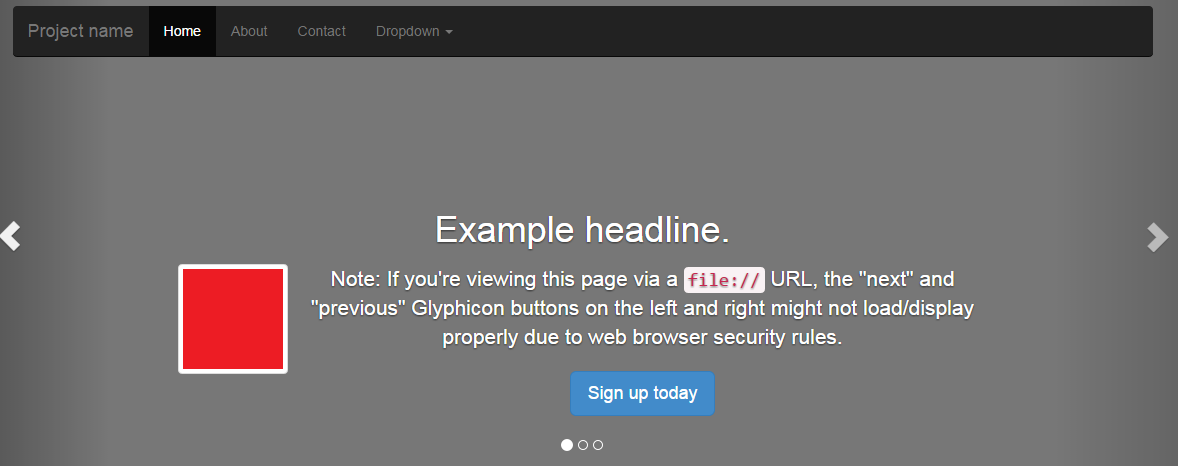
Placing Thumbnails on Bootstrap Carousel

The sample Bootstrap I've come across on http://getbootstrap.com/examples/carousel/ provides a template for creating a running banner slide at the top of the page:


To add a thumbnail to each slide, minor tweaks will be done to the code.The class. carousel-caption inside the class .carousel-inner contains codes that display content on the running banner.


The initial step is to create a thumbnails to display. For this post, let's have three 100x100 images: red.png, green.png and blue.png.

To apply the first thumbnail, look for the first occurence of the class .carousel-caption. Add the class .media as shown below:


Next, add the image tag right above the first paragraph. Take note of the style applied:


This now displays the image on the slide as shown below:


Now, apply the steps while replacing the image on the remaining classes .carousel-caption:


Each slide in the carousel will now have the thumbnails:

Need help on some web coding task? Let me know about it. Email me at jrwxpun.dolor@gmqoapmssail.co57agsblm and I'll be more than happy to blog about it with my thoughts.